
Accessing the QB server
|
1) Connect to the Server
If you are using a non-Windows device:
2) Open QuickBooks
When you are prompted to open a file, you can click on a file from the "Recently Opened" list. Alternatively, if you do not have any recently-opened files or need to find another school, click the "Open or Restore a Company File" and copy and paste this into the filename area:
\\bh-fs\
Then find your school, go into that school's folder, and open the .QBW file.
|
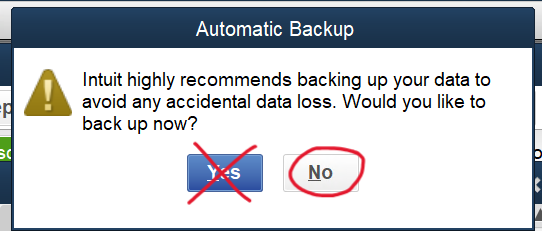
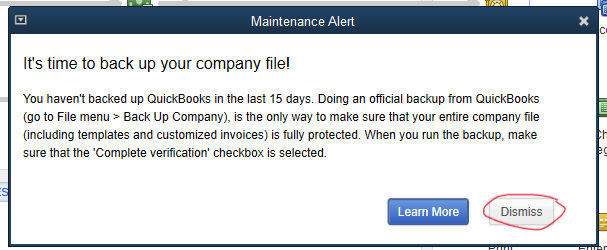
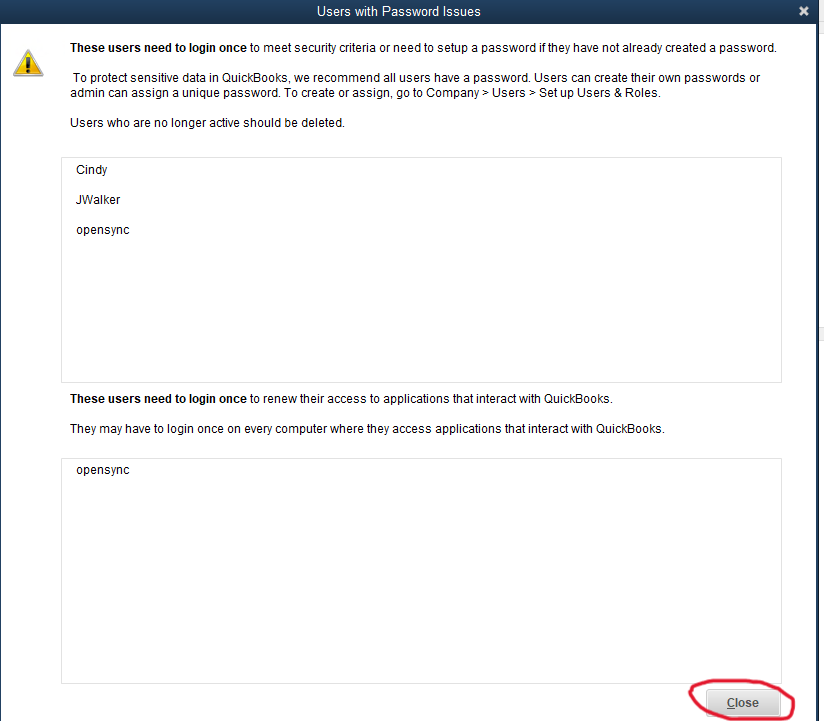
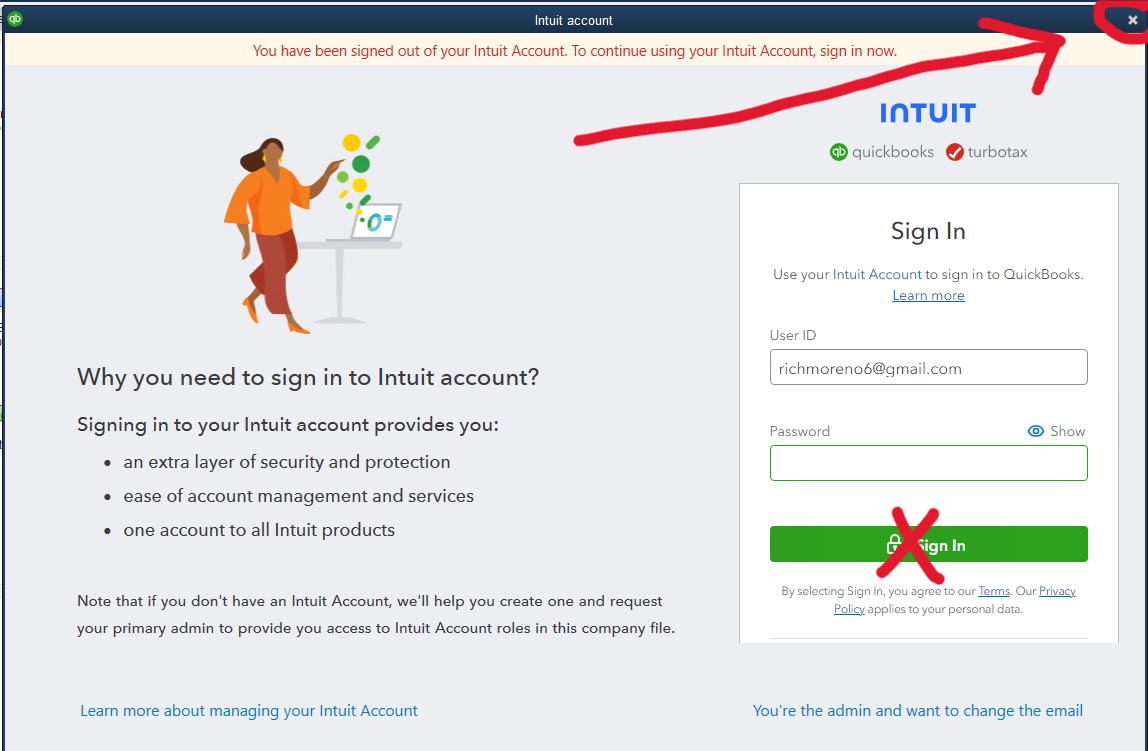
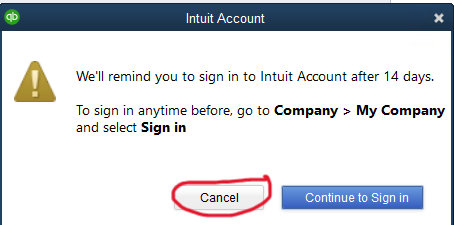
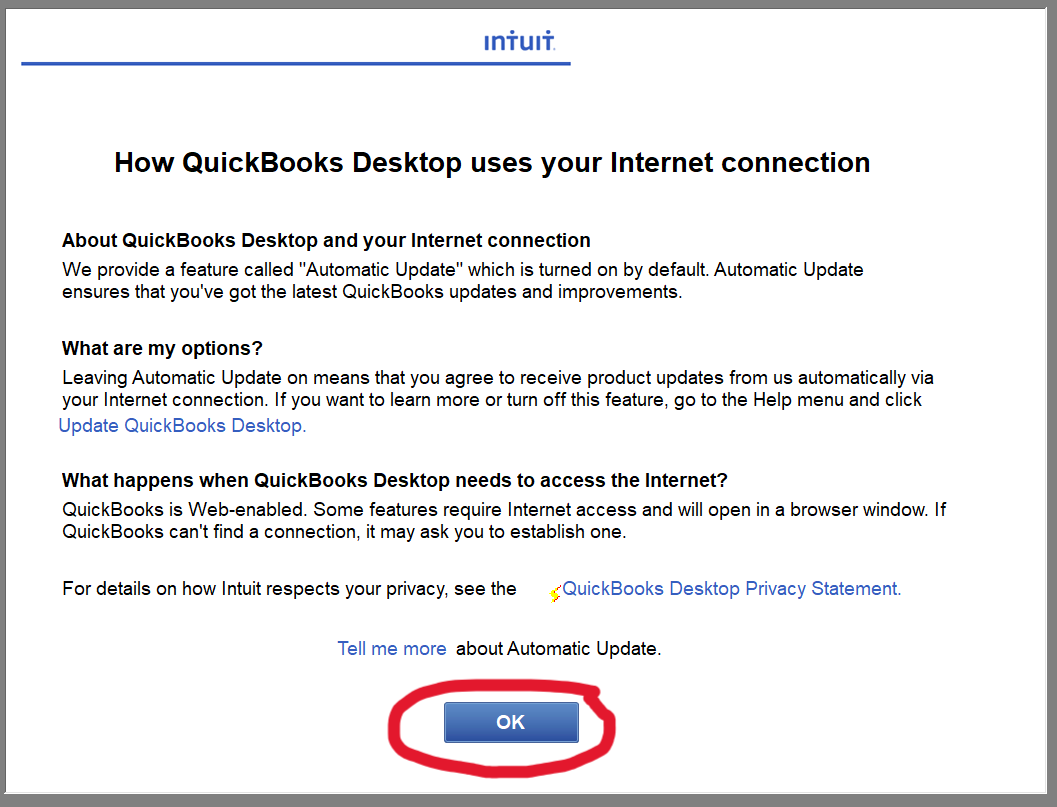
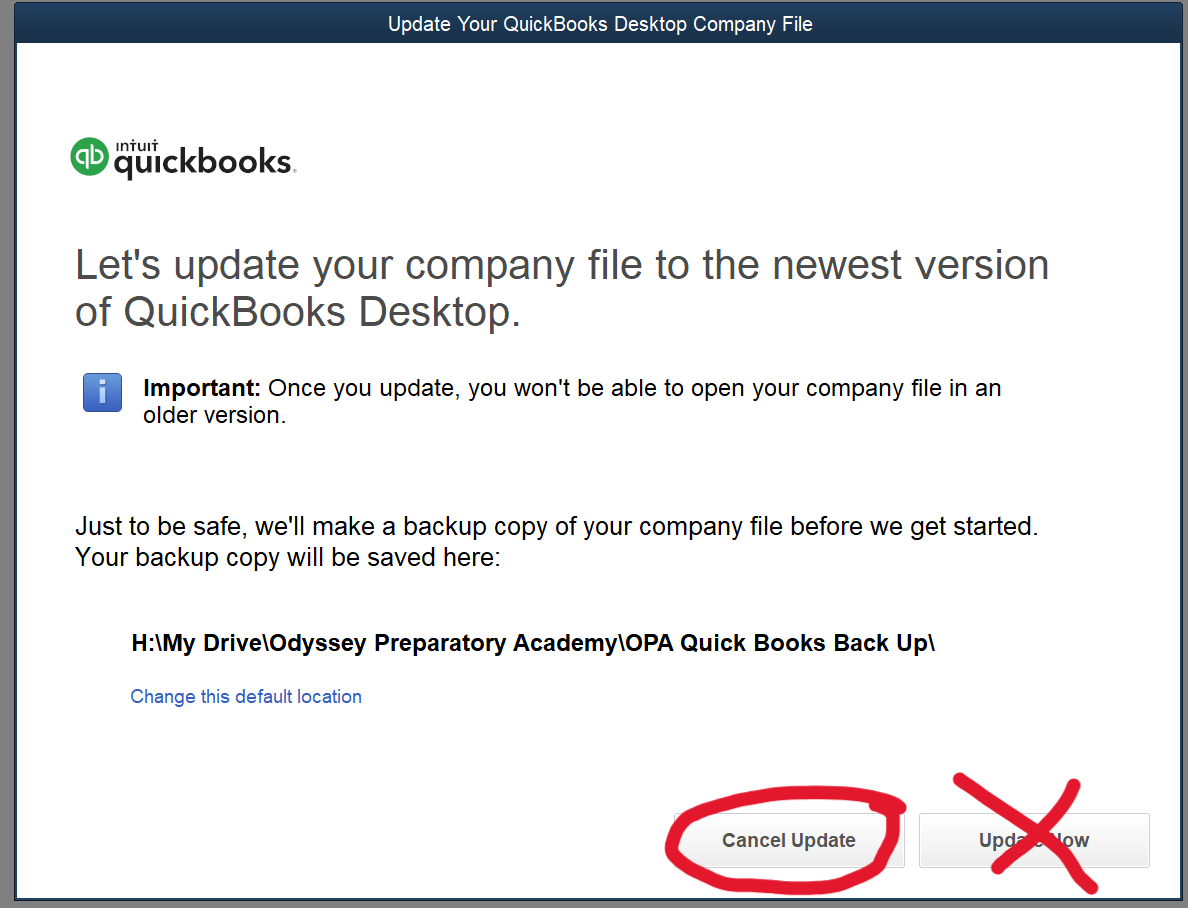
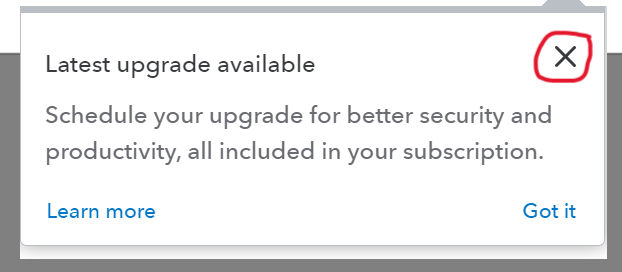
3) QB Pop-UPs
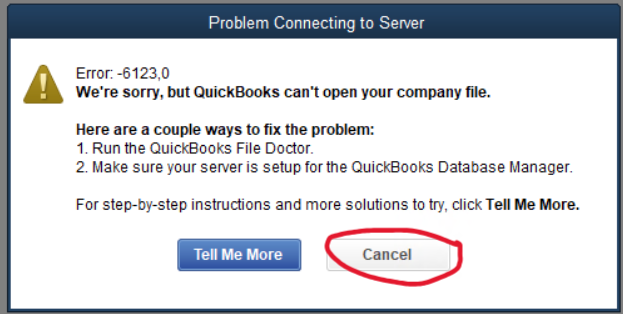
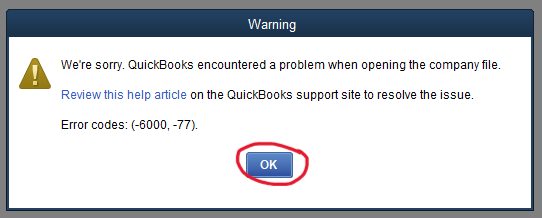
Error when loading? If you have a pop-up that indicates a loading error, just cancel and try again. Some similar alerts might be like this:
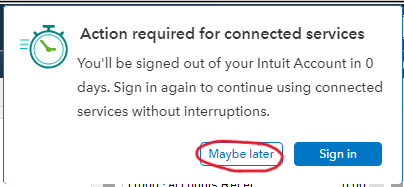
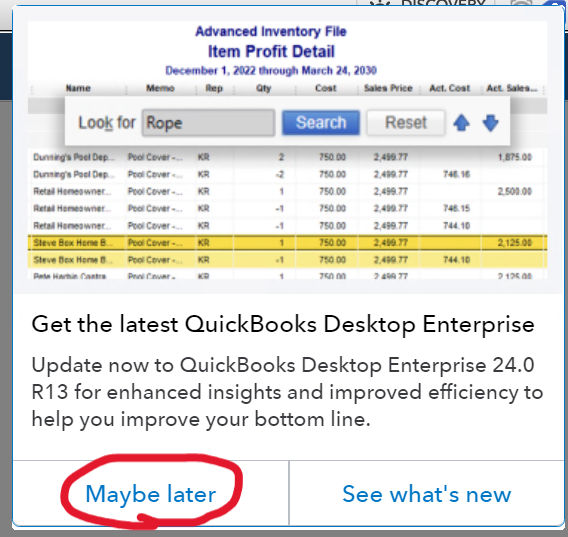
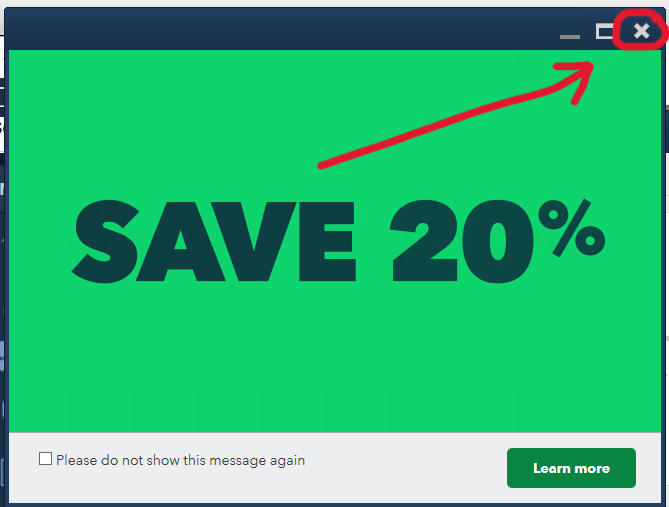
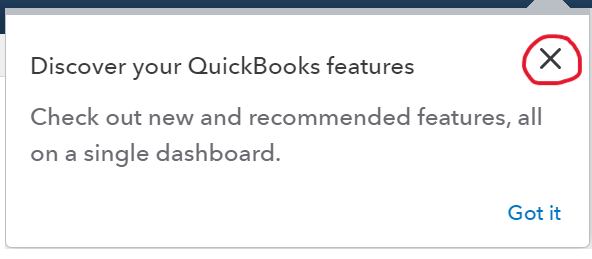
You might encounter additional prompt windows:
When logging into QB please look out for these possible windows or others and you may cancel, decline, etc.
Please do
|

Old Instructions are here:
https://sites.google.com/bhope.org/bh-it/quickbooks/accessing-the-qb-server