
Accessing the QB server
1) Connecting to the Server / QB
QB Server IP Whitelist To increase security, we block general access to the QB server. Only computers connecting from IPs that have been "whitelisted" will be able to access the server. To add your computer's address to the whitelist, you will need to log in to CharterAce before connecting to the server.
When you log in, your computer’s IP address will automatically be added to the list for a 24-hour period. After 24 hours, you will need to re-log in to CharterAce and re-whitelist your IP.
Look at your CharterAce dashboard for something like this:
Remote Server Access You have been whitelisted until the date/time shown to use the following server(s):
If you don't see a listing like that, you may need to click the "manage my access" button. Then click the checkboxes and save.
Remote Desktop / Remote App If you are using a non-Windows device:
Pro Tip: When you see the pop-up below, you will probably want to check the "Clipboard" box so that you can copy/paste from your computer to QB. Also, if you're accustomed to printing from QB/the server, you should check the "Printers" box as well.
If you need new or updated access to QB, CharterAce, or something else, click here: https://charterace.org/accountform/
If you have questions, please email help@bhope.org
DUO Security App Building Hope uses the DUO Security app, a friendly and secure way for you to access your applications.
To access the QB app / server, you will need to set up the DUO Security app. Please look for a separate invitation for this.
Let us know if you don’t receive the invitation or if you have questions while setting it up.
QB Server IP Whitelist To increase security, we are blocking general access to the QB server. Only computers connecting from IPs that have been "whitelisted" will be able to access the server. To add your computer's address to the whitelist, you will need to log in to CharterAce before connecting to the server.
When you log in, your computer’s IP address will automatically be added to the list for a 24-hour period. After 24 hours, you will need to re-login to CharterAce and re-whitelist your IP.
If you need access to CharterAce, click here: https://charterace.org/accountform/ If you have questions, please email help@bhope.org |
2) Using QB
When you are prompted to open a file, you can click on a file from the "Recently Opened" list. Alternatively, if you do not have any recently-opened files or need to find another school, click the "Open or Restore a Company File" and copy and paste this into the filename area:
\\bh-fs\
Then find your school, go into that school's folder, and open the .QBW file. Be sure to click the "open in multi-user mode" checkbox!
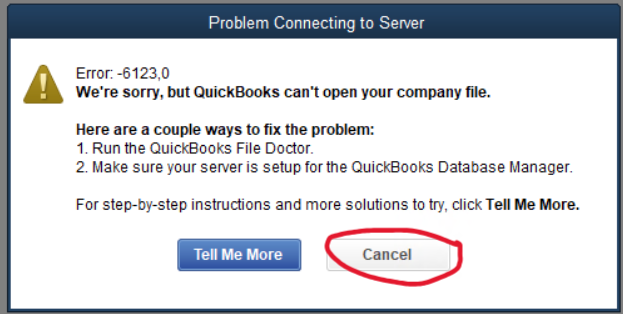
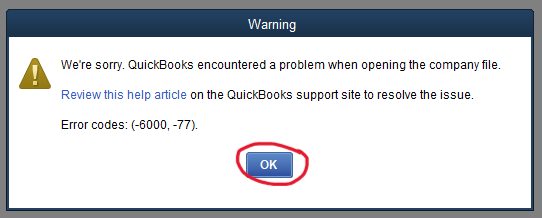
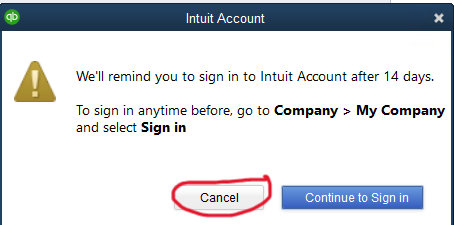
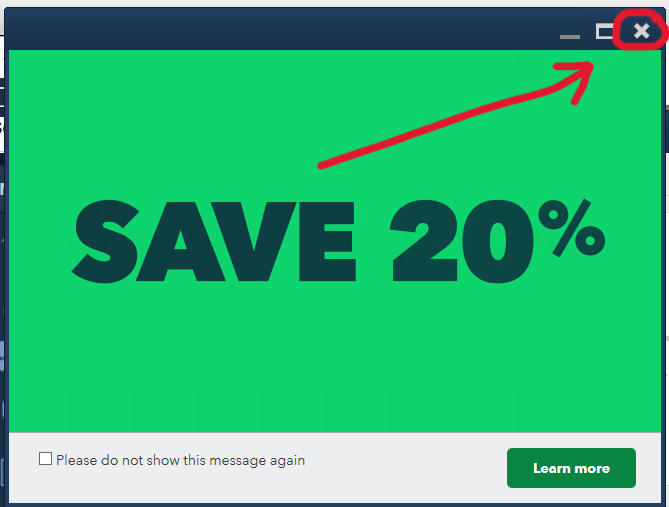
QB Pop-UpsError when loading? If you have a pop-up that indicates a loading error, just cancel and try again. Some similar alerts might be like this:
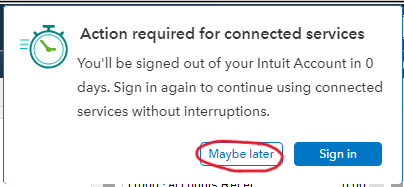
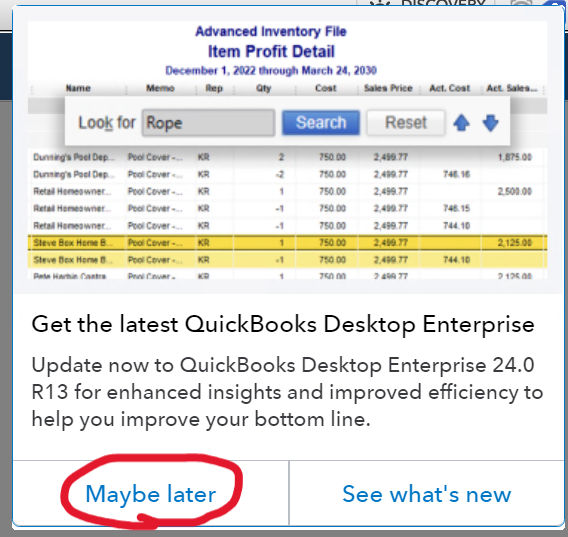
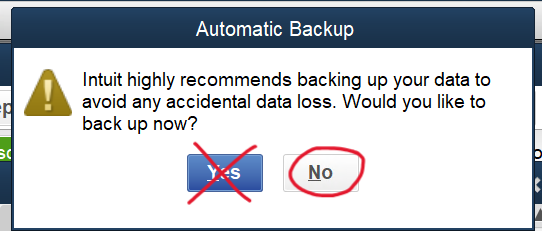
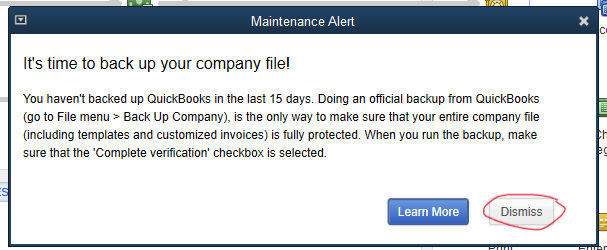
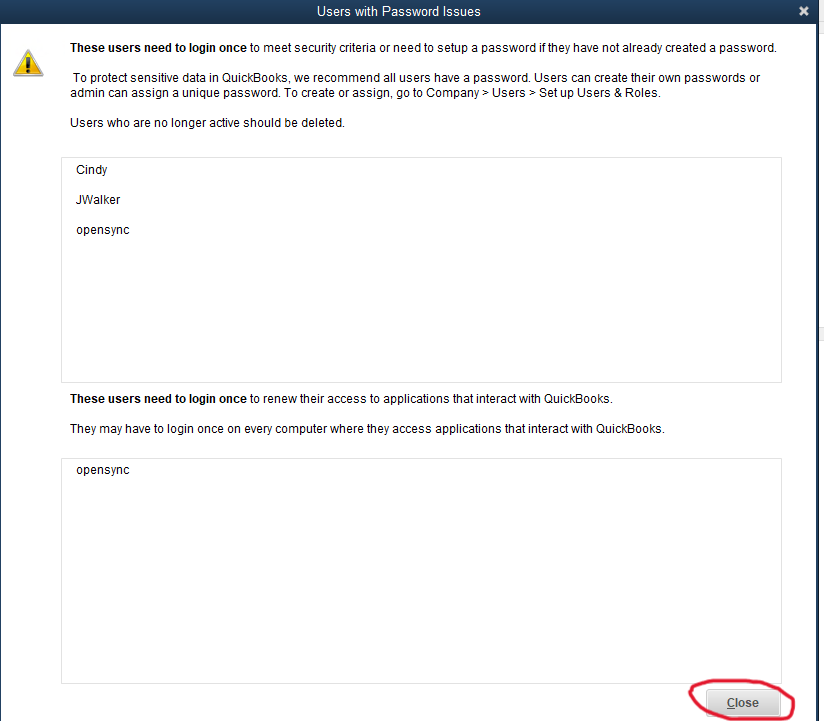
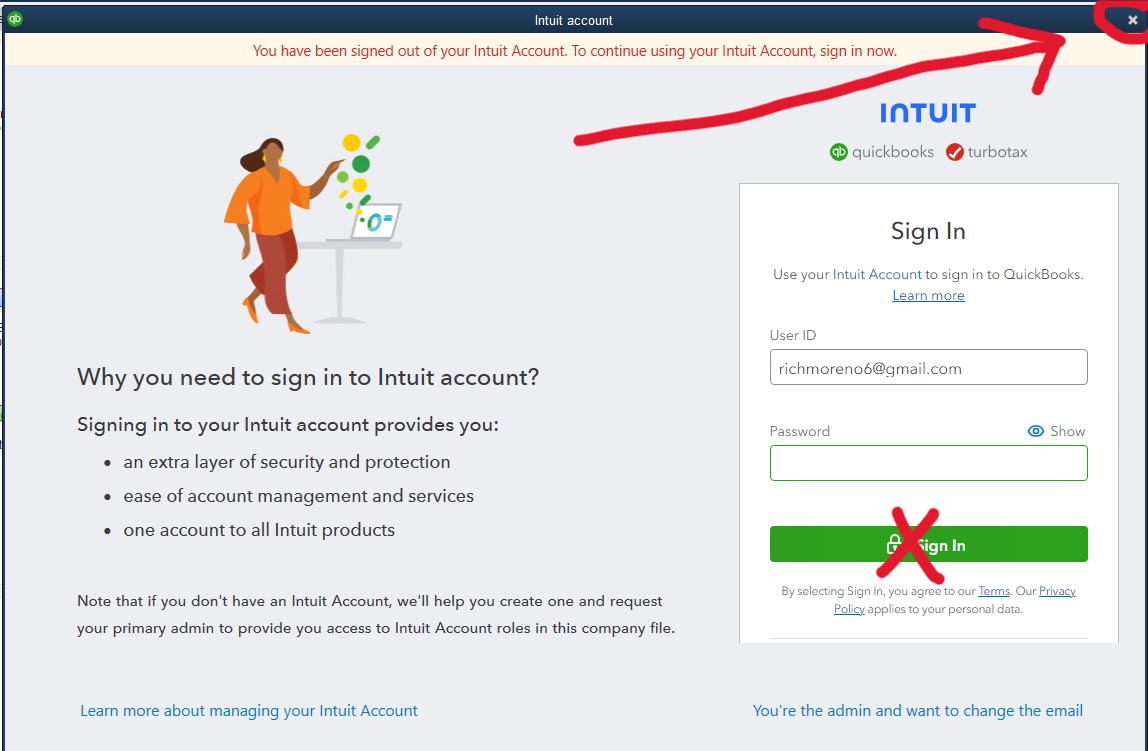
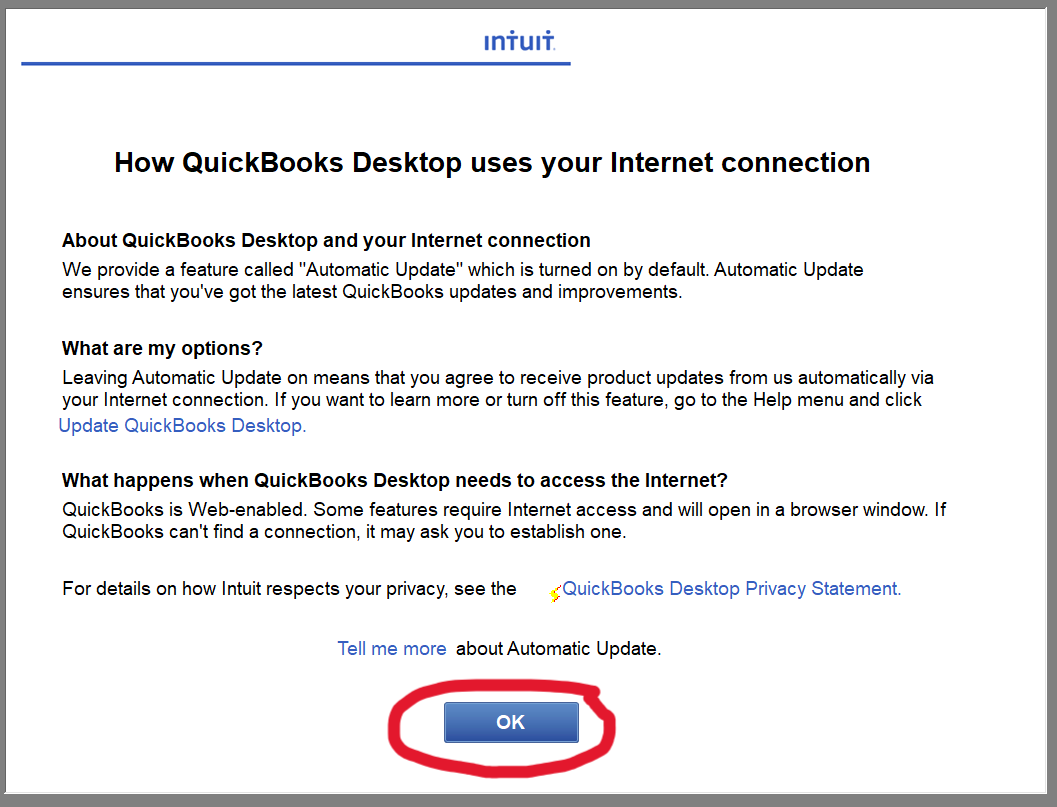
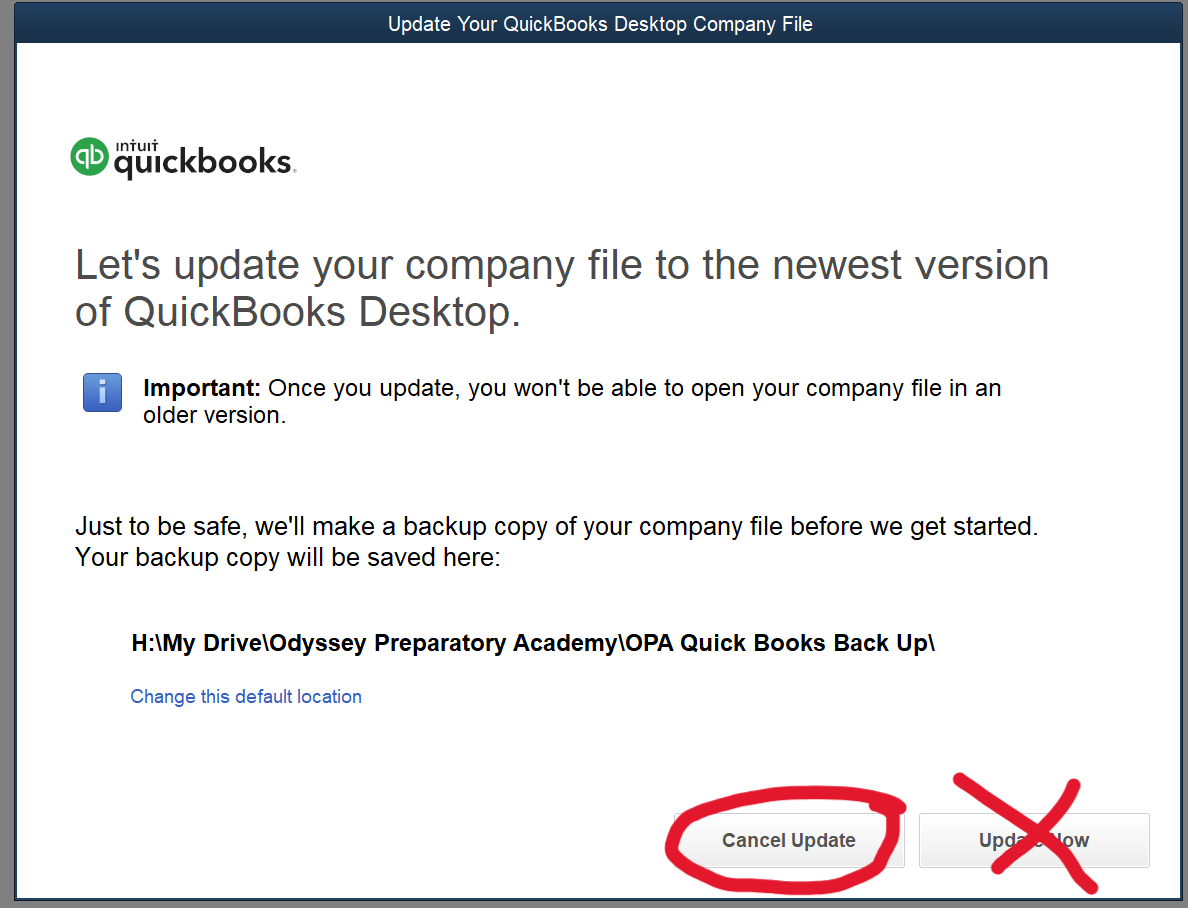
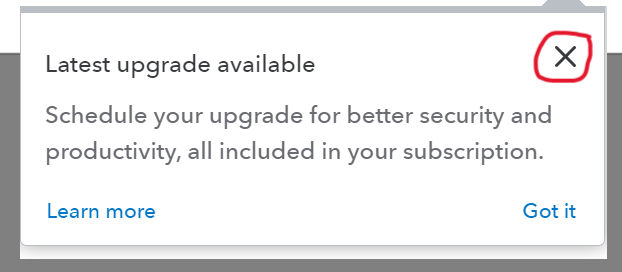
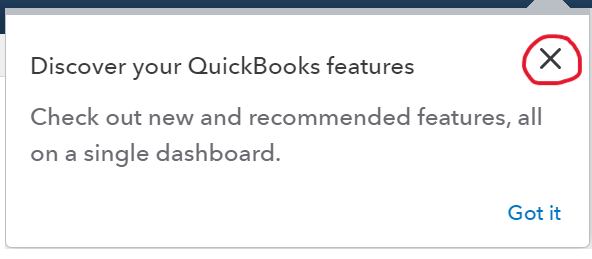
You might encounter additional prompt windows:
When logging into QB please look out for these possible windows or others and you may cancel, decline, etc.
Please do NOT choose to backup or agree to any QB upgrades.
|


Old Instructions are here:
https://sites.google.com/bhope.org/bh-it/quickbooks/accessing-the-qb-server